Cloudflare: Blocking and Managing Traffic
General
Section titled “General”Cloudflare settings are managed with Terraform in the config-mgmt repo.
Any changes to Cloudflare settings must be made via a Merge Request to the appropriate environment. Any settings changes that are not committed to the source code will be overwritten next time the terraform apply pipeline runs. The only exception is during an active incident: the UI may be used for speed and the change back-ported to Terraform afterwards (see Manually).
GitLab Pages and the GitLab registry are not yet fronted by Cloudflare, so these blocks would not affect them.
Creating new WAF rules
Section titled “Creating new WAF rules”:warning: Note that WAF rules apply to HTTP/S traffic only. To apply blocks to other traffic (e.g. SSH), you’ll need to use IP Access Rules, which are a lot less flexible. If you need greater flexibility than what IP Access Rules offer (for example, blocking IP ranges that aren’t /16 or /24), consider blocking in HAProxy. :warning:
via Merge Request to Terraform
Section titled “via Merge Request to Terraform”First decide who needs the rule:
- All GitLab services (GitLab.com + Dedicated + FedRAMP + Runway): add it to the
cloudflare-waf-rulesmodule. - GitLab.com only: add it to
config-mgmt.
In cloudflare-waf-rules
Section titled “In cloudflare-waf-rules”Rule definitions live under data/. Add to the file matching the rule’s purpose, then expose it as an input by extending the relevant schema in variables.tf.
| What you want to add | File |
|---|---|
| Rate-limit rule | data/rate-limit-rules.tf |
| GitLab-app-specific block or challenge | data/rulesets_gitlab.tf |
| Security block (CVE mitigation, header block) | data/rulesets_security.tf |
| Geo / embargo block | data/rulesets_compliance.tf |
The top-level cloudflare-custom-rules.tf and cloudflare-rate-limits.tf are plumbing — they wire the data files into cloudflare_ruleset resources and aren’t normally edited.
In config-mgmt
Section titled “In config-mgmt”The main gitlab.com zone uses the entrypoint/cloudflare module and accepts rules inline via custom_rules.rules = merge(...) and rate_limits.rules = merge(...). Add a numbered key (e.g. "2099") inside those blocks.
- Production:
environments/gprd/cloudflare-general.tf - Staging:
environments/gstg/cloudflare-general.tf
Other zones (about.gitlab.com, cloud-connect-prd, gitlab-static.net, review apps) use cloudflare-waf-rules/cloudflare directly and accept rules via the additional_rules.custom_waf_* or additional_rules.rate_limit inputs in their respective environments/<env>/cloudflare-*.tf files.
Conventions for every MR
Section titled “Conventions for every MR”- Link to the issue or incident in the MR description and as a
# commentabove the rule. - Follow the naming convention — enforced by OPA policy in CI.
- Add rate-limit rules to the ruleset, not as
cloudflare_rate_limitresources (legacy API). - Watch expression length — Cloudflare caps rule expressions at 4,096 characters.
cloudflare-general.tfhascheckblocks that catch this at plan time.
Manually
Section titled “Manually”During an active high-severity (S1/S2) incident the Cloudflare UI may be used for speed; for lower-severity work, go straight to the MR path. Any changes made in the UI will be overwritten the next time terraform apply runs, so they must be back-ported to Terraform before the incident is resolved. For the gitlab.com and staging.gitlab.com zones the back-port is automated, see Persisting the rule to Terraform below; other zones still follow the MR path by hand.
This counts as a mitigation that disables a safety limit (the rule was added to relax or bypass normal traffic-handling behaviour). Before the incident is resolved, leave behind:
- An explicit DRI — a named person from the owning team accountable for the back-port (default: the team manager if unclear). Not the IC.
- A re-evaluation deadline — a concrete date by which the rule will be moved to Terraform or removed.
- A
~"infradev"-tracked follow-up issue in the production-engineering tracker, cross-linking the incident. An incident-timeline entry alone is not enough.
The persistence pipeline below automates the back-port itself; these accountability items still apply until the generated MR is applied.
Creating the rule in the UI
Section titled “Creating the rule in the UI”Create the rule using the Cloudflare UI. Name it per the naming convention, which differs by rule type:
- Custom rules:
ACTION - description, for exampleBLOCK - Incident #123456 abusive path - Rate-limit rules:
description (requests/seconds/counter), for exampleFork clones incident #123456 (100/60s/ip)
In both cases the description should explain why the rule exists and ideally include the incident or issue number: that is what makes the rule auditable and triageable in the dashboard later. The convention is enforced, since the persistence pipeline and the OPA policy both reject non-compliant names (the fix is renaming the rule in the dashboard). For the dashboard mechanics, refer to Cloudflare’s documentation on managing rules.
Persisting the rule to Terraform
Section titled “Persisting the rule to Terraform”For the gitlab.com (production) and staging.gitlab.com zones, the
back-port is automated. This only covers rules evaluating last (the UI
default for new rules); if the rule’s order was changed in the UI, a manual
MR is required. Once the rule has
stabilised (right after the incident is mitigated):
- In
config-mgmt, run a pipeline onmainwith:CF_PERSIST_RULES=truePERSIST_ISSUE_URL= the incident/tracking issue URL on gitlab.com- optional:
PERSIST_ENV=gstgto target staging (default is production),PERSIST_DRY_RUN=trueto print the Terraform without opening an MR
- The
cloudflare-rule-persistjob detects the UI-created rules, generates their Terraform verbatim from the live API, and opens an MR labelledcf-rule-persist. - Review the MR (check the expressions against the dashboard, and that the Atlantis plan adds exactly the listed rules), then apply via Atlantis as usual.
See the config-mgmt HOWTO for details and limitations.
For audit purposes, any manual changes in the UI must also be documented in the associated incident or issue:
- Note the Resource ID (visible in the URL when editing the rule, e.g.
dash.cloudflare.com/<account>/<zone>/security/security-rules/<rule-id>). - Add the
~Cloudflare UI Changelabel to the issue.
How do I Enable “I’m Under Attack Mode” in Cloudflare once I determine we are under a large scale attack?
Section titled “How do I Enable “I’m Under Attack Mode” in Cloudflare once I determine we are under a large scale attack?”Cloudflare’s “I’m Under Attack” mode protects the origin by showing every visitor a ~5-second JavaScript challenge before they reach GitLab. Use it only as a last resort during a large-scale L7 DDoS attack that custom WAF rules and rate limits cannot mitigate.
Use the pre-configured Page Rule (preserves API traffic)
Section titled “Use the pre-configured Page Rule (preserves API traffic)”- In the Cloudflare dashboard, go to Rules → Page Rules for the
gitlab.comzone. - Find the page rule with target
gitlab.com/*and action “Security Level: I’m Under Attack” — it is Off by default. - Toggle it to On.
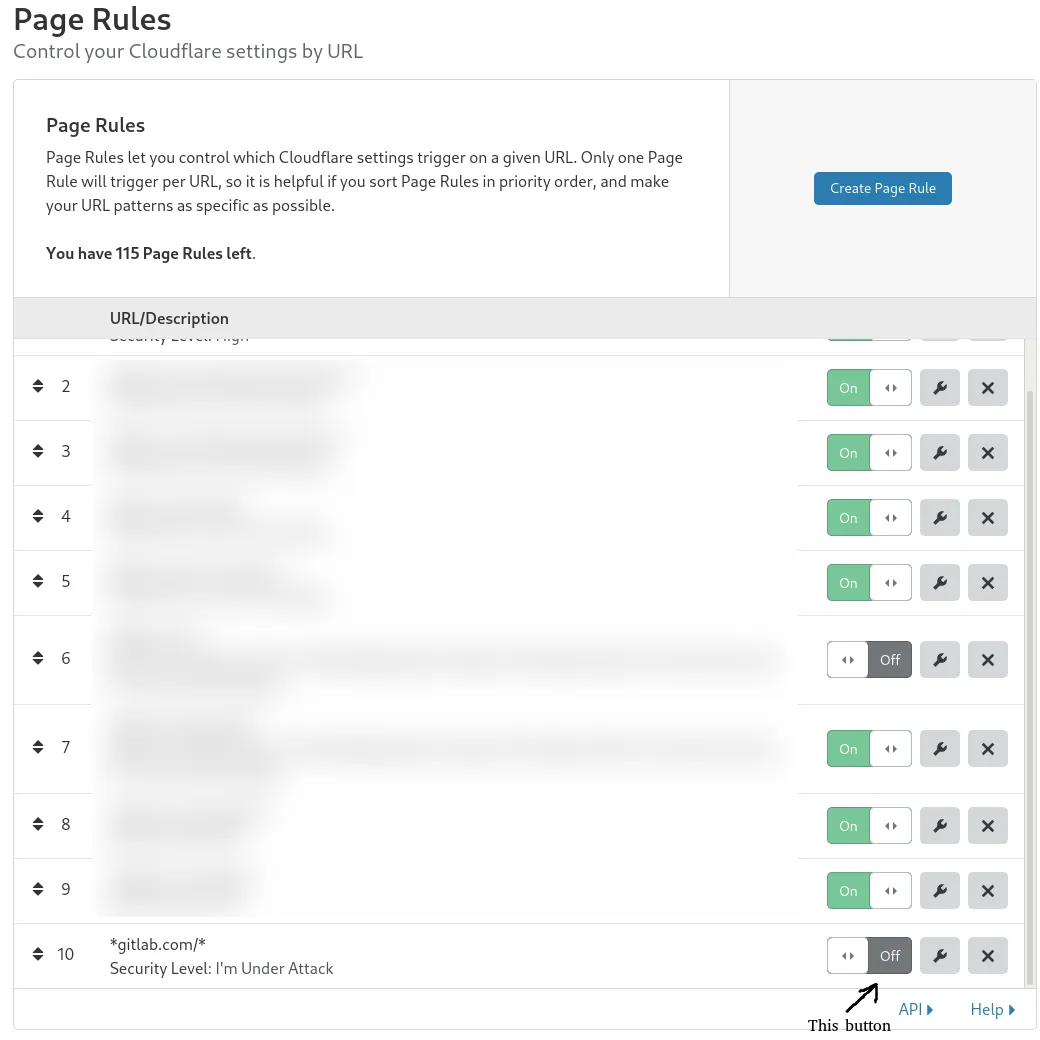
This page rule is the lowest priority, so higher-priority page rules for gitlab.com/api/* and gitlab.com/oauth/* (which set Security Level to “Off”) still take effect. API and OAuth traffic is not challenged and continues working — only browser traffic is challenged.
Do not use the zone-wide Under Attack toggle
Section titled “Do not use the zone-wide Under Attack toggle”Cloudflare’s dashboard also has a zone-wide Security Level setting at Security → Settings → Security level. Do not use this during an incident — it applies to every request including /api/* and /oauth/*, which breaks all automated clients (CI runners, git push, glab, IDE integrations, the Slack app, etc.).
When to block and how to block
Section titled “When to block and how to block”Blocks should be combined to limit the impact on customers sharing the same public IP as the abuser, whenever possible.
IP Blocks should not be a permanent solution. IP addresses get rotated on an ISP level, so we should strive to block them only as long as required to mitigate an attack or block abusive behaviour.
The canonical workflow is to open a Merge Request first and link it to the relevant incident or abuse issue. For GitLab.com-only rules, this means adding to environments/gprd/cloudflare-general.tf in config-mgmt; for rules that should apply to all GitLab services, follow the Merge Request workflow. During an active incident the UI may be used for speed (see Manually).
Note: the firewall issues tracker is now deprecated and archived. We are keeping the repository for historical tracking purposes.
Decision Matrix
Section titled “Decision Matrix”Below is a quick reference for picking the right kind of block during incident triage. The principle: prefer narrow identifiers (URI, User-Agent) over broad ones (IP/CIDR), and temporary blocks over permanent ones — escalate only when the abuse pattern is durable. Cloudflare’s challenge and managed_challenge actions can substitute for block when you want to verify a human is behind the request rather than refuse it outright.
| Type of traffic pattern \ Type of Block | Temporary block on URI | Temporary block on other criteria | Temporary block on IP/CIDR | Permanent block on IP/CIDR |
|---|---|---|---|---|
| 1. Project abuse as CDN, causing production issues or similar | yes | yes, in combination if uniquely identifiable via User-Agent or other means | no | no |
| 2. Spamming on issues and/or Merge Requests | yes, in combination, not as standalone | yes, if uniquely identifiable via User-Agent or other means | yes, if applicable | yes, if applicable and repeated |
| 3. API / Web abuse from single IP/CIDR | yes, if limited to specific paths | yes, in combination if uniquely identifiable via User-Agent or other means | yes | yes, if repeated |
| 4. L7 DDoS not automatically detected by WAF | no | no | yes | yes, if repeated |
“Other criteria” means request fields such as User-Agent, request headers, cookies, or any field Cloudflare exposes in the Rules language.
Scenarios
Section titled “Scenarios”-
Scenario 1.1:
- Problem:
- Project
foo/baris abused by someone, who develops an app (with a dedicated user-agent) which uses this project as a CDN for its version check. This causes high load on Gitaly, raising an alert.
- Project
- Block to apply:
- We have the following datapoints to identify traffic for this specific abuse, so we should apply those. This prevents blocking other, legitimate traffic the App might have with our service, while alleviating the abuse pattern.
- The project URI
- User-agent of the app
- The block to apply would be a combination of those two datapoints.
- We have the following datapoints to identify traffic for this specific abuse, so we should apply those. This prevents blocking other, legitimate traffic the App might have with our service, while alleviating the abuse pattern.
- Why?
- Blocking the project URI itself would lead to a project being unavailable for everyone. But we should limit the impact of a block to the immediate offenders. Since we can uniquely identify update checks via the combination of project URI and User-agent, we should refrain from a project-wide block.
- Further measures:
- Make sure to have support reach out to the project owner(s), to have the abusive pattern removed.
- Inform the abuse team, to further analyze long-term solutions.
- Problem:
-
Scenario 1.2:
- Problem:
- Project
bar/bazis abused by someone, by hosting binary blobs, which are hot-linked all over the internet. This causes high load on Gitaly, raising an alert.
- Project
- Blocks to apply:
- We only have the project URI as an identifier of the requests, as they come from everywhere and are using different clients to connect.
- Thus, the block to apply is on the project URI in question.
- Why?
- We cannot limit the impact of the block, as we have no other means of identifying requests, so we need to block the whole project as a last resort.
- Further measures:
- Have support reach out to the project owner(s), to have them remove the hot-links, if not the primary use-case of the project.
- Inform the abuse team, to further analyze long-term solutions.
- Problem:
-
Scenario 2.1:
- Problem:
- A bot spams on issues of project
gnarf/zort. It does not have a unique user-agent, but limits itself to a single project and originates in a single IP.
- A bot spams on issues of project
- Blocks to apply:
- We have the IP, as well as the project URI path as identifiers.
- We should issue a combined block of project URI path and IP. This is however not applicable, if the target project changes. In that case blocking the IP is the only way we can alleviate this issue.
- Why?
- We should never block the project in these cases, as a project is to be considered a victim of the spam. The combination of project and IP allows a legit customer to still use GitLab if on a shared connection.
- Further measures:
- Involve the abuse team to get the issue spam removed and potentially the user account abused to create those issues blocked.
- Problem:
-
Scenario 3.1:
- Problem:
- A single IP (or small CIDR) is hammering a specific API endpoint (for example
/api/v4/projects/*/repository/files/*or/api/v4/users) at a rate that elevates Gitaly or Web latency.
- A single IP (or small CIDR) is hammering a specific API endpoint (for example
- Blocks to apply:
- Combined block on source IP/CIDR + URI path in the Custom Rules ruleset.
- If a unique User-Agent is also identifiable, add it to the combination to narrow the block further.
- Why?
- A bare IP block can affect legitimate users behind shared NAT/CGNAT.
- A bare path block degrades the API for everyone.
- The combined block is the smallest viable change that mitigates the abuse.
- Further measures:
- If the same source repeats this pattern after the temporary block expires, promote the rule to a permanent IP/CIDR block and link the prior incidents in the rule description.
- Coordinate with the abuse team to investigate whether the source belongs to a known abusive network.
- Problem:
-
Scenario 4.1:
- Problem:
- An L7 DDoS pattern is hitting many endpoints from a set of IPs/CIDRs. The WAF managed rules are not catching it, and frontend saturation (HAProxy / Web / Gitaly) alerts are firing.
- Blocks to apply:
- Temporary IP/CIDR block on the identified source ranges via Custom Rule.
- If the attack is broad enough that per-rule IP blocks aren’t keeping up, escalate to “I’m Under Attack” mode (preserves API traffic).
- Why?
- Path or User-Agent identifiers are usually not viable in L7 DDoS — the attack spreads across endpoints and rotates client signatures.
- We accept some friction for legitimate visitors in the affected ranges in exchange for preserving capacity for everyone else.
- Further measures:
- Open a follow-up issue to investigate why managed rules did not catch the pattern, and consider proposing a new WAF managed-rule entry.
- Convert temporary IP/CIDR blocks into permanent ones only if the same ranges return after the temporary block expires.
- Problem:
Geo-blocking
Section titled “Geo-blocking”For geo-political reasons outside our control, and to remain in compliance with applicable law, we must from time to time block access to our services from specific geographical locations (see the embargo rules in cloudflare-general.tf).
Cloudflare Custom Rules support this using the ip.geoip field family. We currently use country and subdivision_1_iso_code; other geo fields are documented in the Cloudflare Rules language fields reference.
Geolocation data comes from the MaxMind GeoIP database. If a classification is disputed:
- Use MaxMind’s GeoIP lookup demo to verify how an IP is classified.
- Submit corrections via MaxMind’s GeoIP data correction request.
Unless we have first-hand positive knowledge of an IP’s actual location, GitLab should leave correction submissions to the affected parties — they have access to any required proof.
Removing rules
Section titled “Removing rules”If a rule is intended to be temporary, please remove it via Merge Request when it is no longer necessary — in the same file where it was added (see via Merge Request to Terraform for locations). Removal is the DRI’s responsibility (see Manually for the safety-limit process).
See also
Section titled “See also”Alternative blocking mechanisms
Section titled “Alternative blocking mechanisms”Cloudflare is the preferred first option for blocking HTTP/S traffic on GitLab.com. For traffic Cloudflare does not cover (SSH, Pages, the Container Registry) or for finer-grained controls, the following runbooks document other blocking and rate-limiting mechanisms:
- Blocking individual IPs and net blocks on HAProxy — use for SSH, GitLab Pages, and the Container Registry, which are not fronted by Cloudflare.
- Blocking and disabling things in HAProxy — use for path/method blocks at the load balancer (e.g. DELETE on a specific path) and for taking a single backend out of rotation.
- Blocking specific Pages domains through HAProxy — use when a single abusive
*.gitlab.iocustom domain is saturating the Pages service. - Application-layer rate limiting (Rack Attack and friends) — use for authenticated user limits and per-endpoint throttling inside the Rails application.
- Blocking a project causing high load — use when the abuse originates from a specific GitLab project or user and needs to be mitigated via the Rails admin interface.
Related processes
Section titled “Related processes”- Mitigations that disable a safety limit — required process for any temporary rule added during an incident (named DRI, re-evaluation deadline,
~"infradev"-tracked follow-up). - Tracking rate-limit bypasses — specific guidance for allowlist bypasses on rate limits.
- Cloudflare on-call reference — runbook index for Cloudflare on-call duties.
- Cloudflare overview — rulesets, naming conventions, and dashboard authentication.