Teleport Approver Workflow
This workflow outlines the process to review Teleport access requests. It applies to all forms of read-only access facilitated by Teleport, including the Rails console and database access.
Prerequisites
Section titled “Prerequisites”- You are a people manager in the Engineering or Security departments, or have otherwise been granted a Teleport approver role.
- Teleport access via Okta (see getting access).
- (optional)
tshis installed (see installation instructions).
Who can approve access requests?
Section titled “Who can approve access requests?”Requests are generally reviewed by the requester’s direct manager. If their manager is unavailable, the request may be forwarded to the #eng-managers channel for review by any available engineering manager.
| Environment | Access type | Approvers |
|---|---|---|
| Non-prod | Read-only | N/A - approval not required |
| Non-prod | Read/write | N/A - governed by the change management process |
| Prod | Read-only | People managers in the Engineering or Security departments |
| Prod | Rake | People managers in the Monetization group (Fulfillment and Growth) |
| Prod | Read/write | N/A - governed by the change management process |
Process
Section titled “Process”This process is typically initiated when a requester tags you in the #teleport-requests channel, or asks you directly to approve an access request.
- Log into Teleport via Okta SSO at https://production.teleport.gitlab.net.
- In the left-hand sidebar, navigate to Identity Governance > Access Requests. Alternatively, you may click the link in #teleport-requests to jump directly to the request.
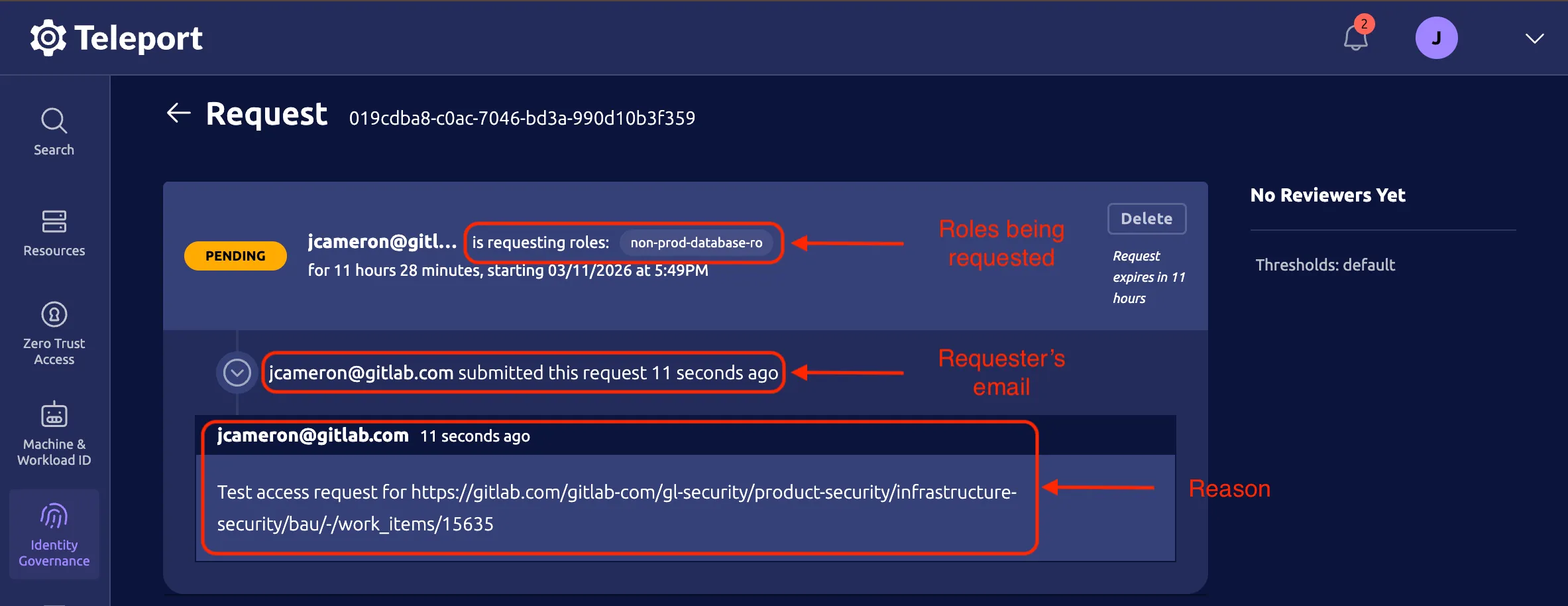
- Identify the requester’s pending access request and click View.
- Follow the review checklist below to determine whether the request meets security & compliance requirements.
- If each checklist requirement is met, select Approve short-term access, otherwise select Reject request. You may optionally provide a short message with your reasoning
- Click Submit Review.
- The Slack bot in the #teleport-requests channel will automatically notify the requester.
Review checklist
Section titled “Review checklist”- The reason field contains a permanent link (usually to a GitLab issue)
- The issue linked in the reason field explains why the access request is required at this point in time
- The issue linked in the reason field explains what the requester intends to use the access for
- As an approver, use your judgement to determine whether the roles or resources being requested are appropriate and align with the the issue linked in the reason field.
(Optional) CLI workflow
Section titled “(Optional) CLI workflow”Approvals can be done entirely through the web interface, but there are times when it may be desirable to do them from the CLI.
tsh login --proxy=production.teleport.gitlab.net # Log into Teleporttsh request ls # List pending access requeststsh request show <request_id> # Show the details of a requesttsh request review <request_id> # Review a requestNext Steps
Section titled “Next Steps”- Access requests are temporary and expire after 12 hours, but may be used across multiple sessions. They may be renewed before or after expiration using the same request process.
- Read about access requests in Teleport’s docs.
Support
Section titled “Support”- For help with Teleport or the approval process, ask in #security_help.
- To report a Teleport bug, open an issue with Infrastructure Security.
Troubleshooting
Section titled “Troubleshooting”Credentials expired
Section titled “Credentials expired”If you see the following errors:
ERROR: your credentials have expired, please login using tsh login
ERROR: lstat /private/var/lib/teleport: no such file or directory
It’s likely that you need to log in or re-authenticate with:
tsh login --proxy=production.teleport.gitlab.netUser Issues
Section titled “User Issues”Many user issues can be corrected by removing their local ~/.tsh directory. It
will be re-created on next login. These problems usually show up if the user has
previously connected to an instance which has been rebuilt and has new CA
certificates.
There are also times when restarting the Teleport service has resolved user issues. Read about that in the teleport_admin runbook.