Breakglass
We follow the Principle of Least Privilege whereby SREs don’t have default read/write access to Cells infrastructure. This helps limit blast radius in case of security incidents or misconfigurations of running scripts locally to production.
For AWS-deployed infrastructure, access is managed through Okta SSO using Identity Center for the Web Console and CLI.
Web Console access
Section titled “Web Console access”- Go to https://gitlab.okta.com/
- Click the AWS Cells
<env>Org tile of your choosing (you can bookmark the result URL for future use)<env>can be eitherDevorProd
- In the AWS access portal, open Hub Cells
<env>and click AdministratorAccess - This will log you into the Hub account with an assumed Administrator role
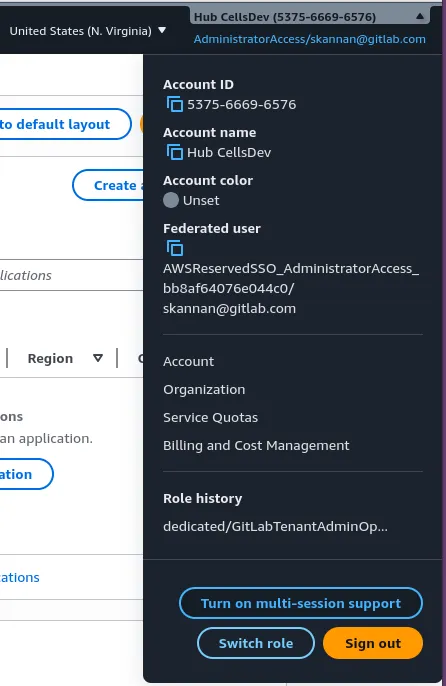
- On the top right of the AWS console, click the
username @ account-iddropdown and click onSwitch role1 - In the displayed form, enter account ID as the value of the
/aws_account_idfield from the tenant model of the Cell.- Example:
373633008521for cell c01k21yz9qqajjfn6z - Note: The value of the
/amp_aws_account_idfield should not be used when switching roles. 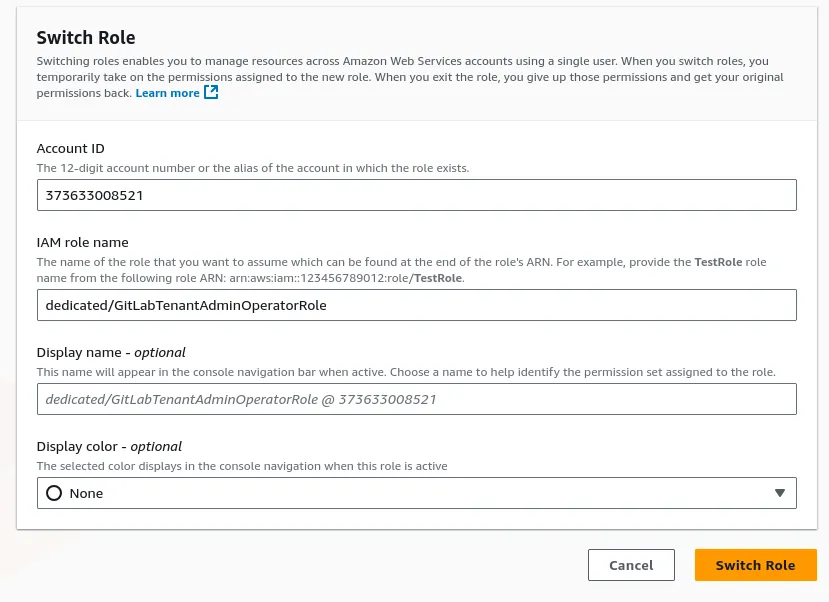
- Example:
- Enter
IAM role nameas eitherdedicated/GitLabTenantAdminOperatorRoleordedicated/runner/GitLabRunnerAdminOperatorRole - After switching roles, select the appropriate region (usually,
us-east-1) to view the resources inside a Cell’s account
CLI access
Section titled “CLI access”The following process is the Cells version of the process for GitLab Dedicated which is outlined in this guide.
-
Login to Hub account: - Run
assume-env-local.shin the AMP project.AMP_ENVIRONMENTcan be eithercellsdevorcellsprodTerminal window AMP_ENVIRONMENT=<environment>; eval "$(./scripts/assume-env-local.sh "${AMP_ENVIRONMENT}")"This will open a prompt in the browser to sign-in using SSO, select
Confirm and continueand thenAllow access. -
Assume role: Run
assume-tenant-admin-operator.shto assumededicated/GitLabTenantAdminOperatorRoleIAM role in the target tenant accountTerminal window eval $(./scripts/assume-tenant-admin-operator.sh <TENANT_AWS_ACCOUNT_ID>)TENANT_AWS_ACCOUNT_IDis the value of the/aws_account_idtenant model field. Example:373633008521for cell c01k21yz9qqajjfn6z -
Confirm AWS access: Run
aws sts get-caller-identityto confirm that you have the right user and role ARNTerminal window $ aws sts get-caller-identity{"UserId": "<AWS_USER_ID>:OperatorAccess","Account": "<AWS_ACCOUNT_ID>","Arn": "arn:aws:sts::<AWS_ACCOUNT_ID>:assumed-role/GitLabTenantAdminOperatorRole/OperatorAccess"}
Kubernetes Cluster Access
Section titled “Kubernetes Cluster Access”Once you have gained access to the Cell, you can update your local kubeconfig with the EKS cluster credentials for <TENANT_ID>, using the aws CLI.
aws eks update-kubeconfig --region us-east-1 --name <TENANT_ID>Once this is done, you will be able to use kubectl to get resources inside the Kubernetes cluster.
We use Privileged Access Manager (PAM) to provide short lived access to GCP via the console or gcloud.
When to escalate
Section titled “When to escalate”---
title: PAM access entitlements
---
flowchart TD
need_access[I need access to Cells]
is_incident{Are you in
an incident?}
is_change_incident{Need changes
to fix an incident?}
is_change_normal{Need to
make changes?}
is_specific_cell{Do you know which Cell
you need to look at?}
is_team_members_available{Are team members
available?}
is_change_operational{Do you need to
make temporary changes
as part of a CR?}
iac_change[Make changes through IaC]
project_read
project_admin
project_breakglass
org_read
need_access-->is_incident
is_incident-->|Yes| is_change_incident
is_change_incident-->|No|project_read
is_change_incident-->|Yes, need write access to quickly solve incident
I will sync IaC after|is_team_members_available
is_team_members_available-->|Yes|project_admin
is_team_members_available-->|No|project_breakglass
is_incident-->|No| is_change_normal
is_change_normal-->|No|is_specific_cell
is_change_normal-->|Yes|is_change_operational
is_specific_cell-->|Yes|project_read
is_specific_cell-->|No|org_read
is_change_operational-->|Yes|project_admin
is_change_operational-->|No
OR
Yes, but I can make changes through IaC|iac_change
How to escalate
Section titled “How to escalate”Google provides guides to request access through the console
and through the gcloud CLI.
Specific Examples:
Levels of access
Section titled “Levels of access”Default Access
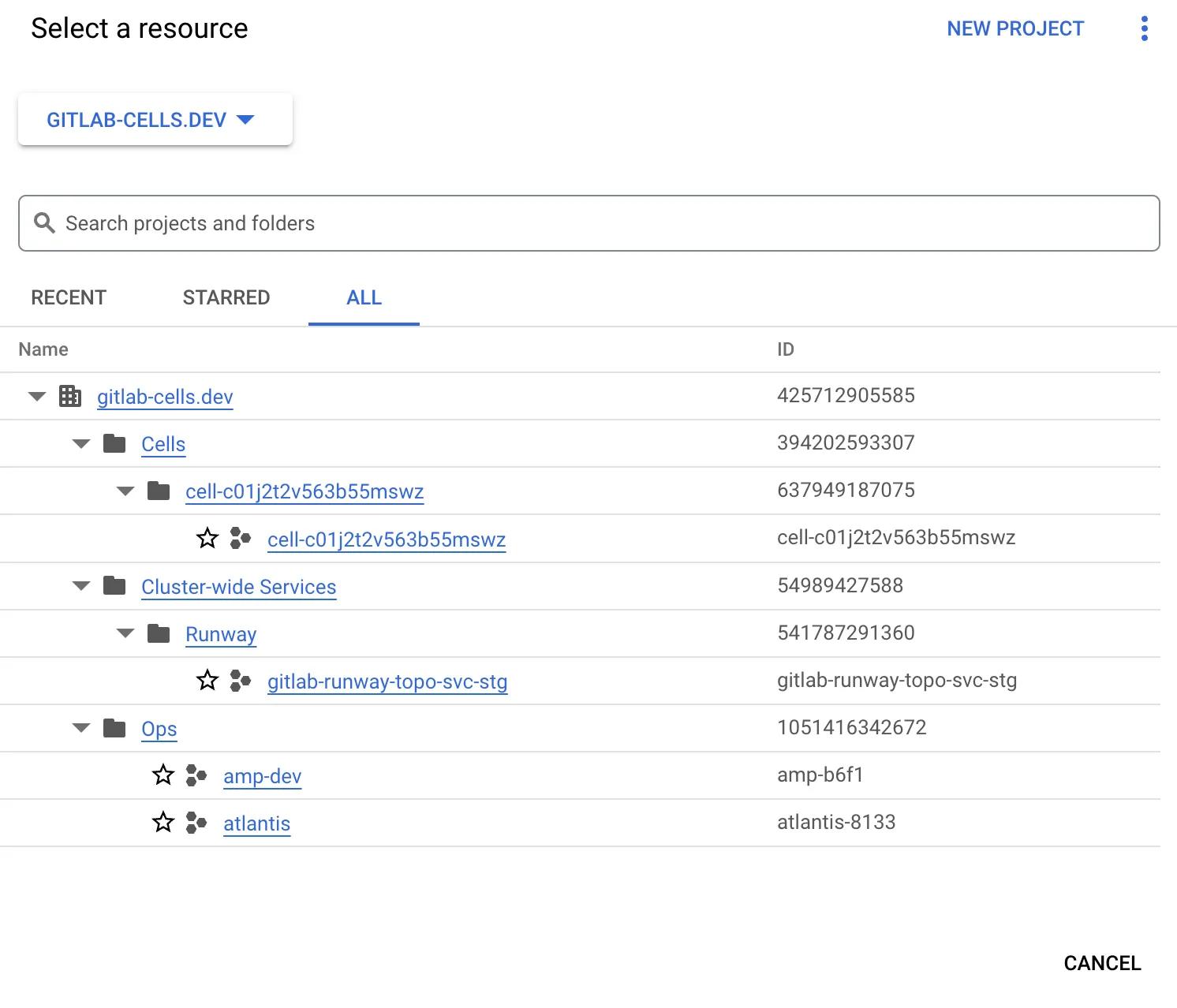
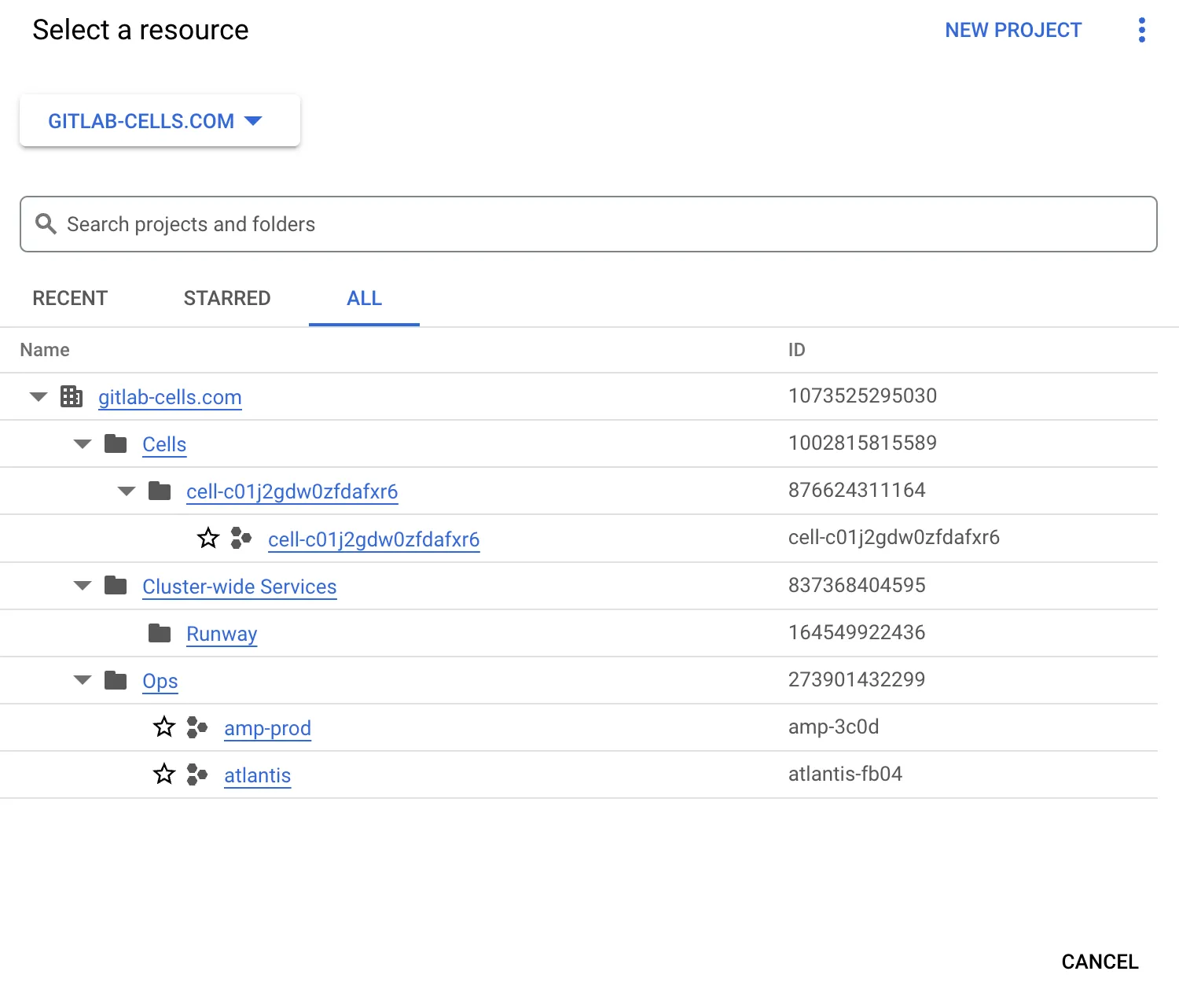
Section titled “Default Access”By default we give enough permissions to SREs to view the organization, view projects, and use PAM. For any further action through GCP changes must be made through IaC or using PAM escalation.
| Cells Dev | Cells Prod |
|---|---|
 |  |
Org-wide Access
Section titled “Org-wide Access”-
Get access with
gcloud:Terminal window # $ORG_ID for dev: `425712905585`# $ORG_ID for prod: `1073525295030`# $CELL_ENV for dev: `dev`# $CELL_ENV for prod: `prod`gcloud beta pam grants create \--entitlement="org-readonly-entitlement-${CELL_ENV}" \--requested-duration="1800s" \--justification="$ISSUE_LINK" \--location=global \--organization="$ORG_ID"
This entitlement provides the ability to list resources at an org-wide level, but does not provide the ability to get details for resources, other than IAM bindings. This is useful for initial
discovery and exploration of the resources available across the org.
Project Access
Section titled “Project Access”-
Get access with
gcloud:Terminal window # TENANT_ID: Can be found in the "tenant_id" field in the tenant model in `cells/tissue`.# example TENANT_ID="c01j2gdw0zfdafxr6"gcloud beta pam grants create \--entitlement="gldt-readonly-entitlement-${TENANT_ID}" \--requested-duration="1800s" \--justification="$ISSUE_LINK" \--location=global \--project="cell-${TENANT_ID}"
This entitlement provides the ability to view resources within a project scope. This allows you to list and get resources to discover and describe specific resource configurations, e.g. Viewing
the details for a GKE cluster and its nodes.
-
Get access with
gcloud:Terminal window # TENANT_ID: Can be found in the "tenant_id" field in the tenant model in `cells/tissue`.# example TENANT_ID="c01j2gdw0zfdafxr6"gcloud beta pam grants create \--entitlement="gldt-admin-entitlement-${TENANT_ID}" \--requested-duration="1800s" \--justification="$ISSUE_LINK" \--location=global \--project="cell-${TENANT_ID}"
Admin access provides typical operational readwrite abilities for managing cell infrastructure.
This level of access requires an approver, and typically will also link to an issue detailing why the access is required. We should prefer making changes through IaC wherever possible.
-
Get access with
gcloudaccess:Terminal window # TENANT_ID: Can be found in the "tenant_id" field in the tenant model in `cells/tissue`.# example TENANT_ID="c01j2gdw0zfdafxr6"gcloud beta pam grants create \--entitlement="gldt-breakglass-entitlement-${TENANT_ID}" \--requested-duration="1800s" \--justification="$ISSUE_LINK" \--location=global \--project="cell-${TENANT_ID}"
Breakglass provides the same level of access as the project_admin entitlement.
This access does not require an approver. The entitlement is intended to be used during an incident response when there is low team member availability.
We should use breakglass as a last resort when we need to make an emergency change to speed up incident response.
-
Get access with
gcloudTerminal window # AMP_PROJECT_ID for dev: `amp-b6f1`# AMP_PROJECT_ID for prod: `amp-3c0d`gcloud beta pam grants create \--entitlement="gld-readonly-entitlement" \--requested-duration="1800s" \--justification="$ISSUE_LINK" \--location=global \--project="amp-3c0d"
The AMP GCP project has the same entitlements as a Cell, meaning project_read, proejct_admin, project_breakglass
Kubernetes Cluster Access
Section titled “Kubernetes Cluster Access”If you would like to connect to the GKE cluster inside the Cell using kubectl on your local machine, you can do so by getting the GKE cluster credentials for the Cell.
TENANT_ID="<tenant_id>"
gcloud container clusters get-credentials ${TENANT_ID} \  --region us-east1 \  --project cell-${TENANT_ID}
Troubleshooting
Section titled “Troubleshooting”Cluster Not Running Warning
Section titled “Cluster Not Running Warning”If you see a warning that the cluster is not running, when you attempt to get the cluster credentials for a Kubernetes cluster:
WARNING: cluster c01j98xncnbxvaqayp is not RUNNING. The kubernetes API may or may not be available.This may indicate the cluster is being upgraded or in maintenance. Check the cluster status in the GCP/AWS console or try again some time later.